Mandis Shop
Home > Brands > Remote controls JVC > Remote control for JVC RM-SNXD4R > Interactive key distribution JVC RM-SNXD4R

Interactive key distribution JVC RM-SNXD4R

Go to the remote

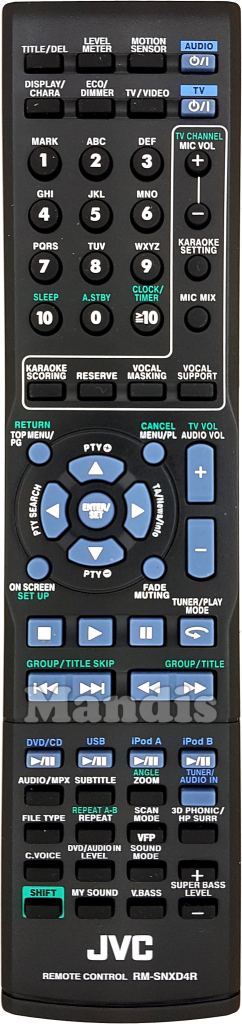
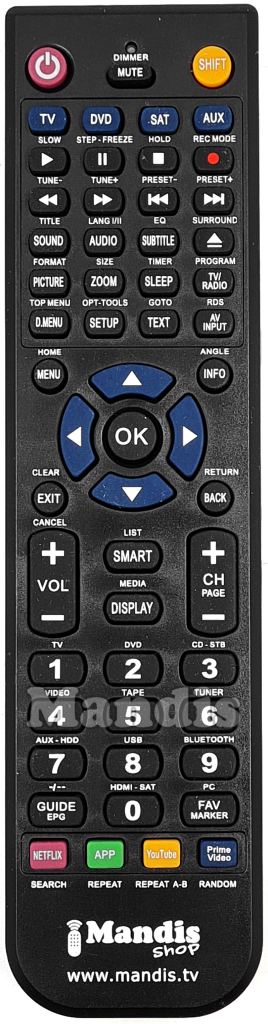
To facilitate the transition to the new remote control, we have created an interactive tool that allows you to identify the function of each button.


How to use the tool:

  1. Look at the images of the two remote controls: the original (left) and the replacement (right).
  2. Hover over a button on the original remote control. Press the button on mobile devices.
  3. Watch how the corresponding button on the replacement remote control lights up:
    • Blue: Direct function (without needing to press the SHIFT key).
    • Green: Function that requires pressing the SHIFT key before pressing the button.

Additional information:

  • SHIFT key: Some buttons on the replacement remote control require pressing the SHIFT key before pressing another button to perform certain functions. If a button on the original remote control requires the SHIFT key, it will be indicated in the image.

If you have any questions or need help using the new remote control, feel free to contact us.

Is your replacement remote different? Version 1Version 2
Audio Power
Motion Sensor
Level Meter
Title / Del
TV Power
TV / Video
ECO / Dimmer
Display / Chara
1 / Mark
2
3
4
5
6
7
8
9
0 / A.Stby
10 / Sleep
>= 10 / Clock/Timer
Mic Vol + / TV Channel +
Mic Vol - / TV Channel -
Karaoke Setting
Mic Mix
Karake Scoring
Reserve
Vocal Masking
Vocal Support
Top Menu / PG / Return
Menu/PL / Cancel
Audio Vol + / TV Vol +
Audio Vol - / TV Vol -
Up / PTY +
Down / PTY -
Right / TV/News/Info
Left / PTY Search
Enter / Set
On Screen / Set Up
Fade Muting
Stop
Play
Pause
← / Tuner/Play Mode
I
>>I / Group/Title Skip +
>> / Group/Title
DVD/CD Play/Pause
USB Play/Pause
iPod A Play/Pause
iPod B Play/Pause
Audio / MPX
Subtitle
Zoom / Angle
Tuner / Audio In
File Type
Repeat / Repeat A-B
VFP / Scan Mode
3D Phonic / HP Surr
C.Voice
DVD/Audio In Level
Sound Mode
Super Bass Level +
Super Bass Level -
V.Bass
My Sound
Power Audio
Power Tv
Fade Muting
Eco/Dimmer
Play
No function
Pause
No function
Stop
No function
No function
No function
<<
No function
>>
>> Group/Title
I<<
I<< Group/Title Skip
>>I
Group/Title Skip >>I
Sound Mode
Title/Del
Audio/MPX
C.Voice
Subtitle
V.Bass
3D Phonic/HP Surr
Level Meter
Motion Sensor
Reserve
Zoom
No function
Sleep
Clock/Timer
Tv/Video
No function
Top Menu/PG
Vocal Support
Set Up
Karaoke Setting
On Screen
Karaoke Scoring
VFP/Scan Mode
DVD/Audio In Level
Menu/PL
Vocal Masking
Angle
A.Stby
Up/PTY+
Mic Vol+
Left/PTY Search
No function
Enter/Set
Mic Mix
Right/TA/News/Info
No function
Down/PTY-
Mic Vol-
Cancel
No function
Return
No function
Audio Vol+
Tv Vol+
Audio Vol-
Tv Vol-
←/Tuner/Play Mode
No function
Display/Chara
File Type
Super Bass Level+
Tv Channel+
Super Bass Level-
Tv Channel-
1/Mark
No function
2
My Sound
3
No function
4
No function
5
No function
6
Tuner/Audio In
7
No function
8
No function
9
No function
0
No function
>10
No function
10
No function
Play/Pause DVD/CD
No function
Play/Pause USB
Repeat
Play/Pause iPod A
Repeat A-B
Play/Pause iPod B
No function
Instructions for use

Download PDFDownload PDF


Frequently asked questions
Why does both the SHIFT button and another button illuminate sometimes?
When the SHIFT button and another key are illuminated means that to perform this function, you have to press the SHIFT button first and then the other illuminated button.
Why sometimes more than one button are illuminated on the replacement remote control?
When several buttons are illuminated and none of them is the SHIFT button, it means that you can use any of the illuminated keys to perform the function.
What do the green buttons above the remote controls?
Some remote controls can control several devices. In these cases it is necessary to use different codes to perform all functions, and clicking on these buttons you can switch between the codes. If there are no green buttons, it means that the original remote controls only one device or we have been able to put all the functions in the same code.
Why does the "No function" message come up in some buttons?
This means that this button does not perform any function. It may be that a button does not perform any function when a device is controlled, but that it is used when changing device.

Find remote controls
i
Search optionsshow
Copyright © Mandis Shop 2025
Contact us Do you want to be a distributor? Download invoice Customer reviews Terms and Conditions Privacy and cookies policy Payment methods Shipments Shipping information Refund request Withdrawal form Universal Remotes Smart TV Universal remotes for €5 Mobil version